Templates

Create reusable email templates with dynamic placeholders for orders, customers, and store details.

Written By ScaleFlows Team

Last updated 22 days ago

๐Ÿ’ก Tip: Streamline common responses with message templates.

How to create templates

Step 1. Go to Settings โ†’ Templates.

Step 2. Click Create Template.
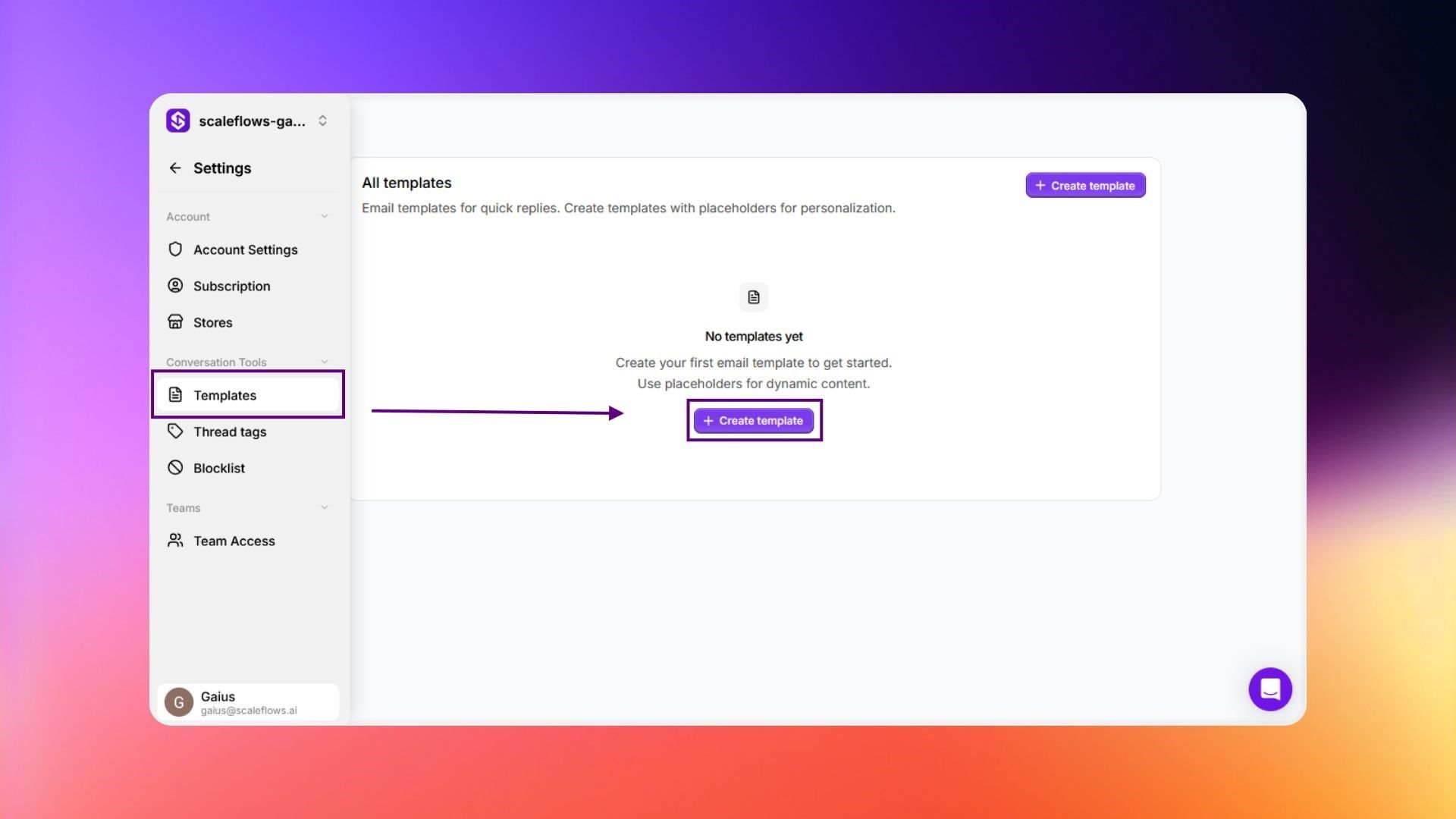
Templates view

Step 3. Give it a name.

Step 4. Write the subject line and body.

Step 5. Use placeholders from the list for dynamic content.
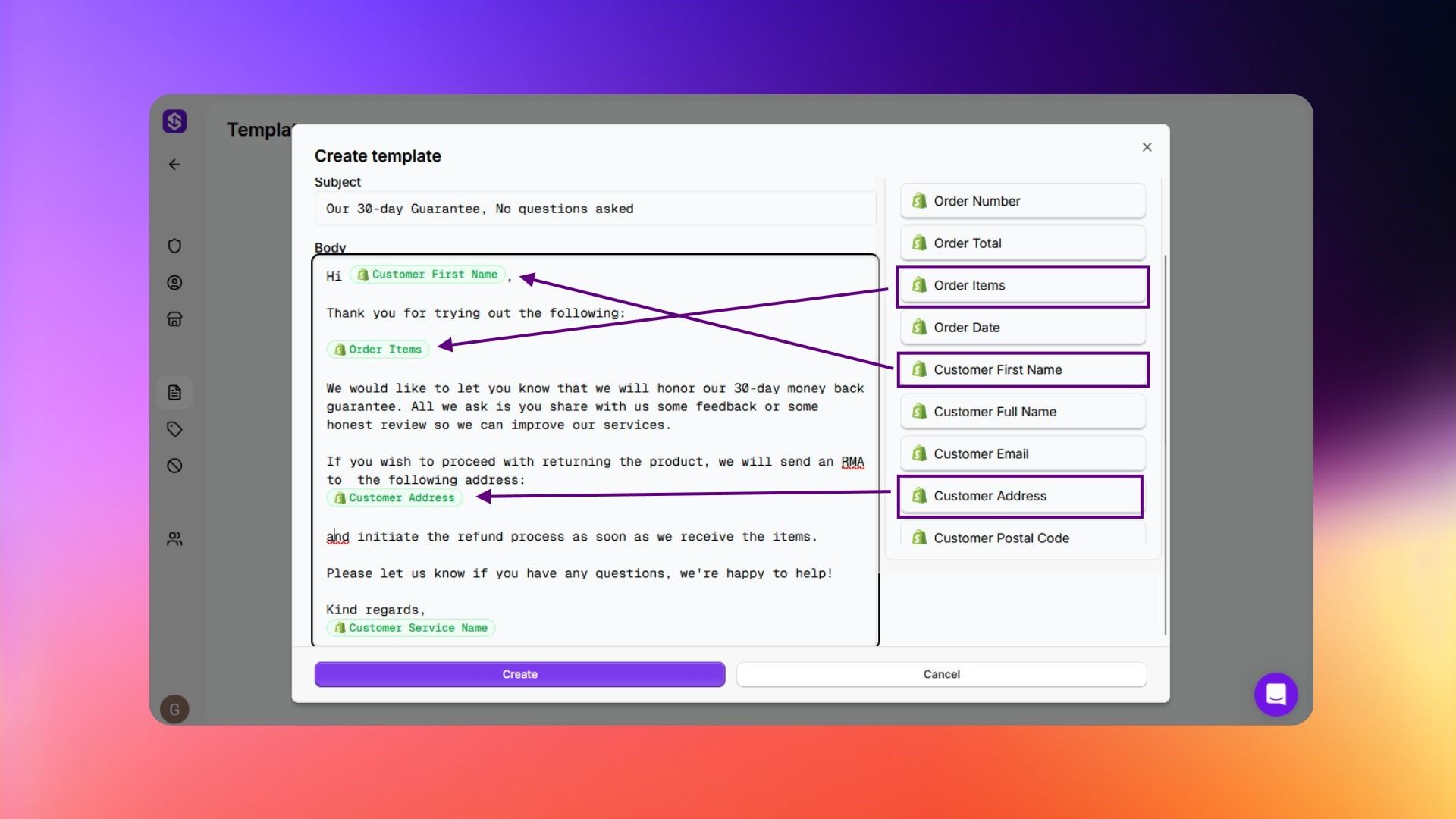
Create template

Step 6. Click Create.

โœ… Success: The template is now available in the message composer.

Available placeholders

Order Details

PlaceholderDescription
Order NumberThe unique ID for the purchase.
Order TotalThe final amount paid.
Order ItemsThe list of products bought.
Order DateWhen the purchase was made.

Customer Information

PlaceholderDescription
Customer First NameThe buyer's first name.
Customer Full NameThe buyer's first and last name.
Customer EmailThe email address used for the order.
Customer AddressThe street address provided by the buyer.
Customer Postal CodeThe zip or postal code.
Customer CountryThe country from the address.
Customer CityThe city from the address.

Shipping & Tracking

PlaceholderDescription
Tracking NumberThe carrier's code to track the package.
Tracking URLA clickable link straight to the package's tracking page.

Business & Support Details

PlaceholderDescription
Store NameThe name of your business.
Store EmailYour support or contact email address.
Customer Service NameThe name of the agent or team sending the message.