Analytics

Track your AI's performance, financial impact, and customer trends from one dashboard.

Written By ScaleFlows Team

Last updated 22 days ago

๐Ÿ’ก Tip: Use this to view what is costing or saving you, and where your support time is going.

Step 1. From the sidebar, go to Analytics.
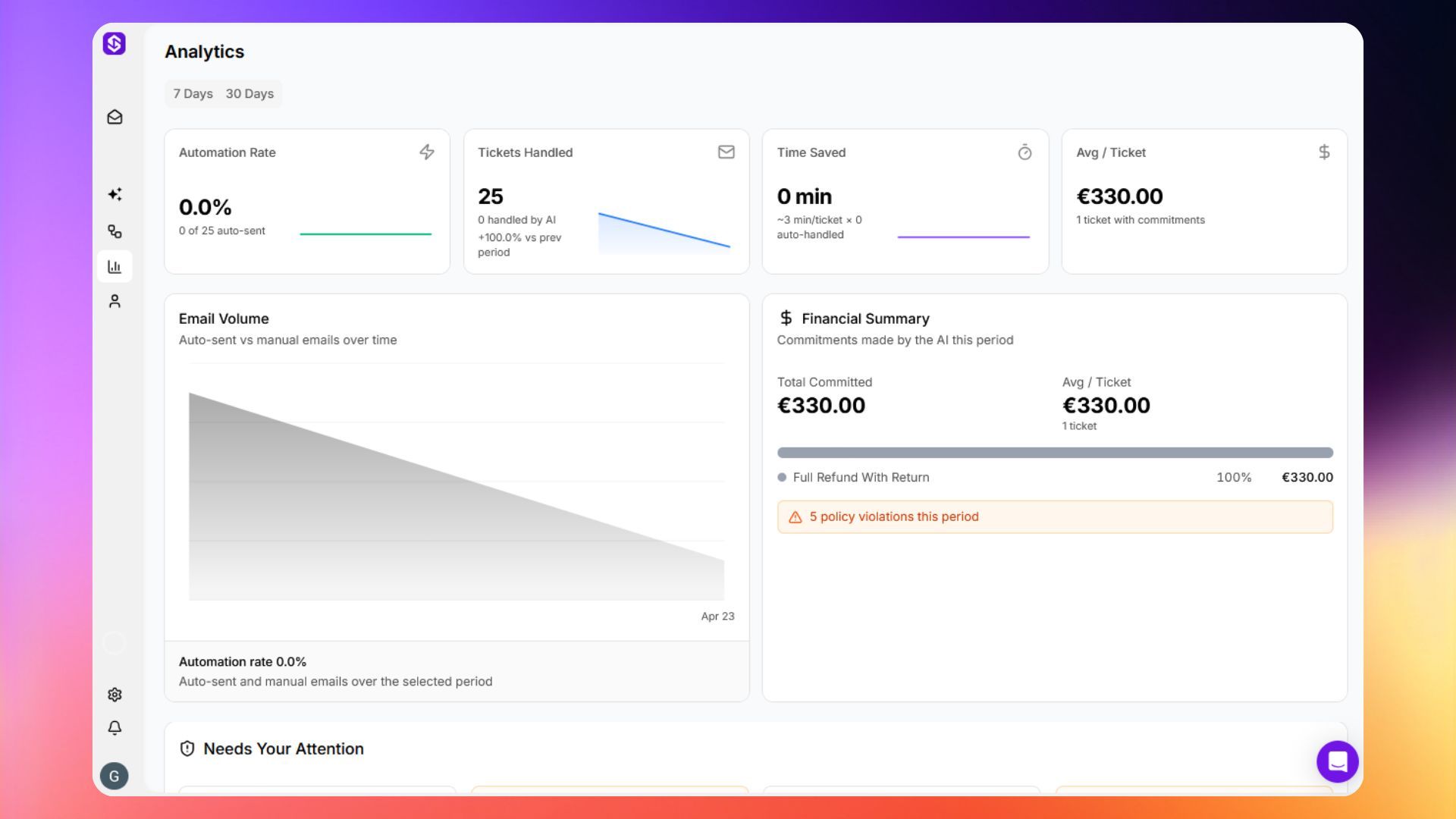
Analytics view

Step 2. Use this data to fine-tune your AI policies and spot trends.
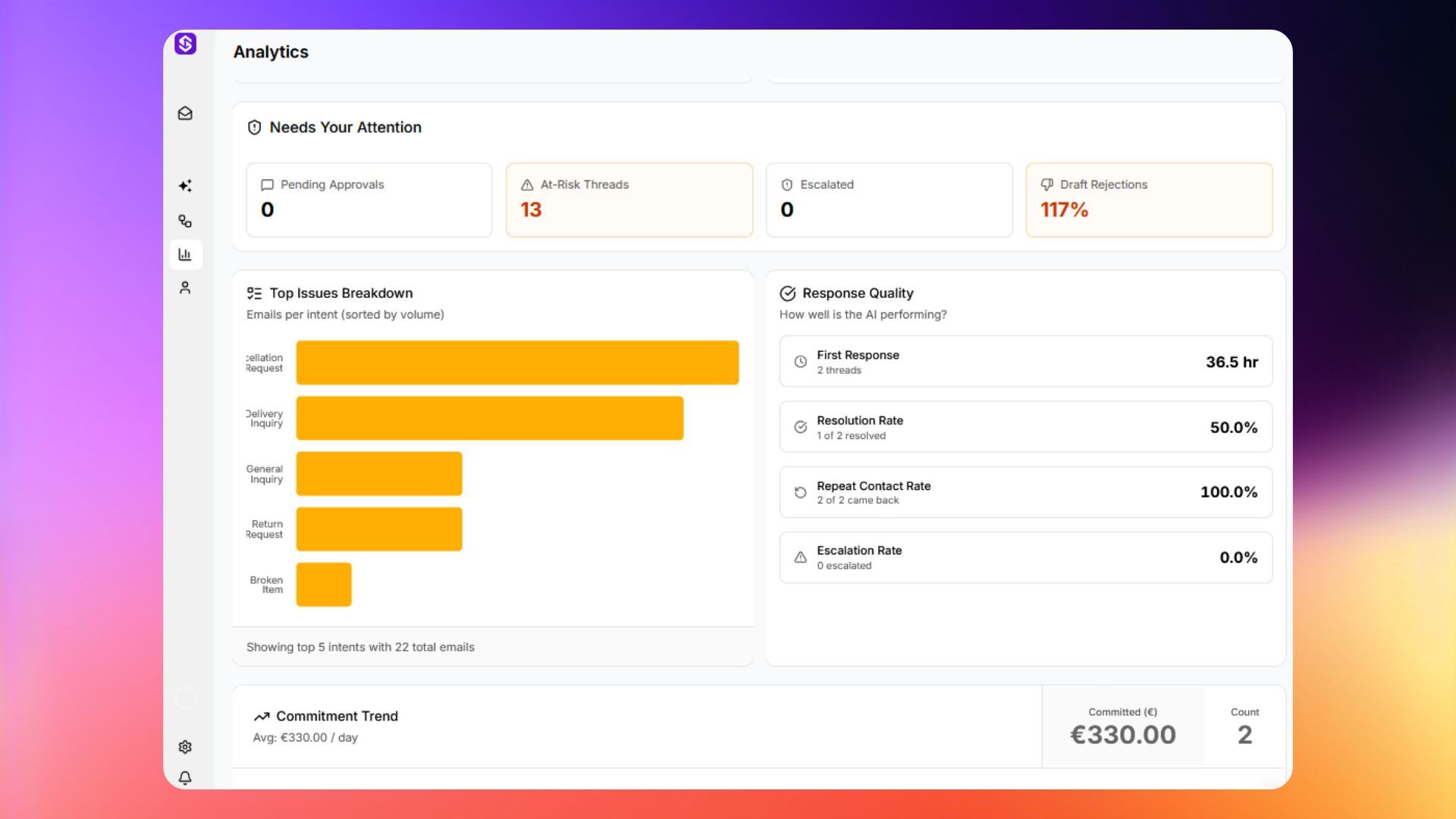
Analytics view 2

๐Ÿ’ก Tip: Check your analytics weekly. A high escalation rate usually means a policy or rule needs adjusting, not that the AI isn't working.

DataDescription
Email volumeTotal emails received and sent.
Auto-send ratePercentage of replies sent automatically (no human needed).
CommitmentsRefunds, replacements, and discounts the AI committed to.
Financial impactDollar value of commitments and estimated savings.
Time savedHours of manual work avoided.
Escalation rateHow often the AI needed human help.
Intent breakdownWhat customers are writing about (refunds, tracking, product questions, etc.)