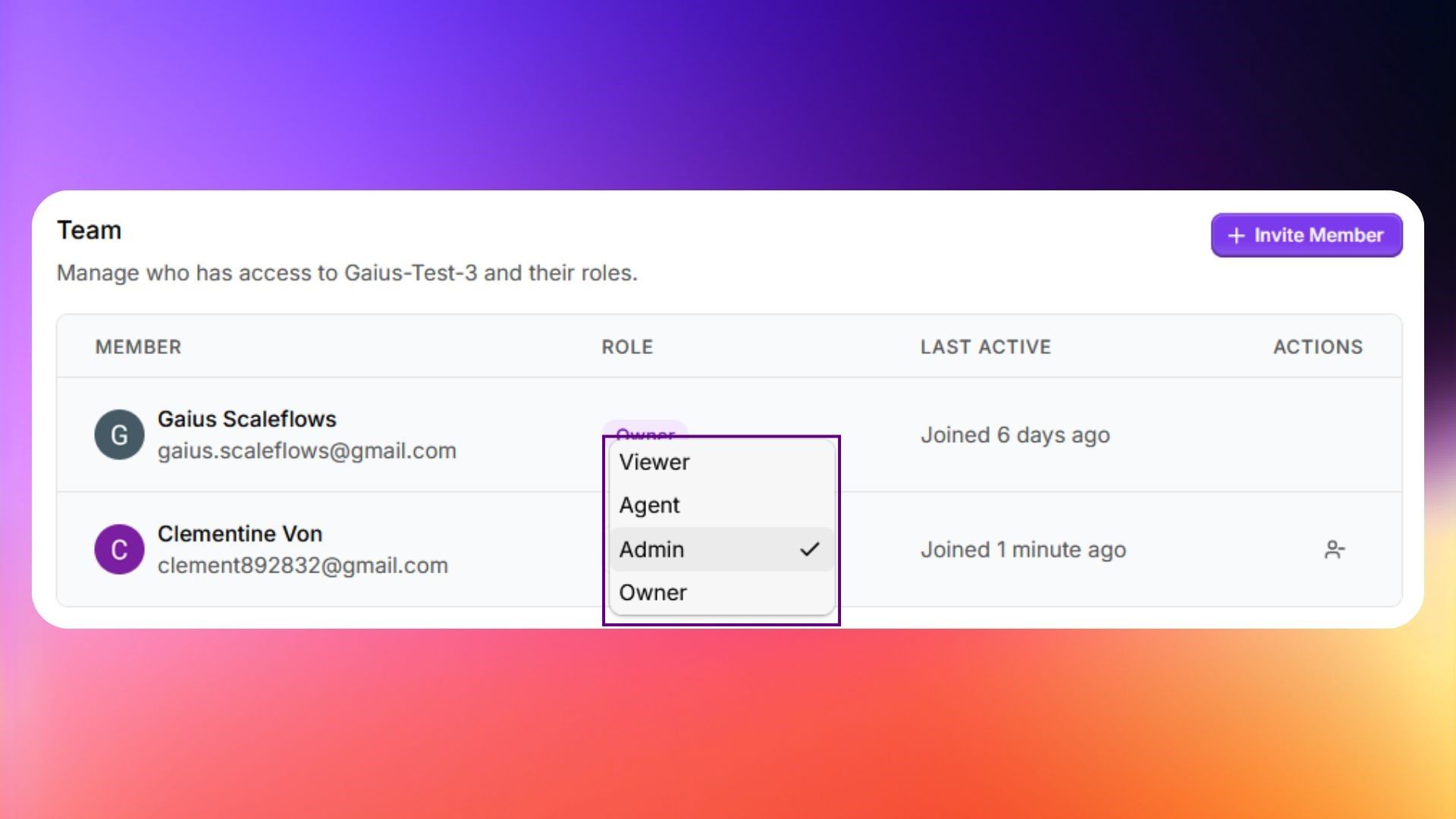
Team Access
Invite team members and manage roles for Viewer, Agent, and Owner access to your workspace.
Written By ScaleFlows Team
Last updated 22 days ago
💡 Tip: Use this to grant additional access to your workspace.
Video Guide
Text Guide
Step 1. To manage your team's access and activity, go to Settings → Team Access.
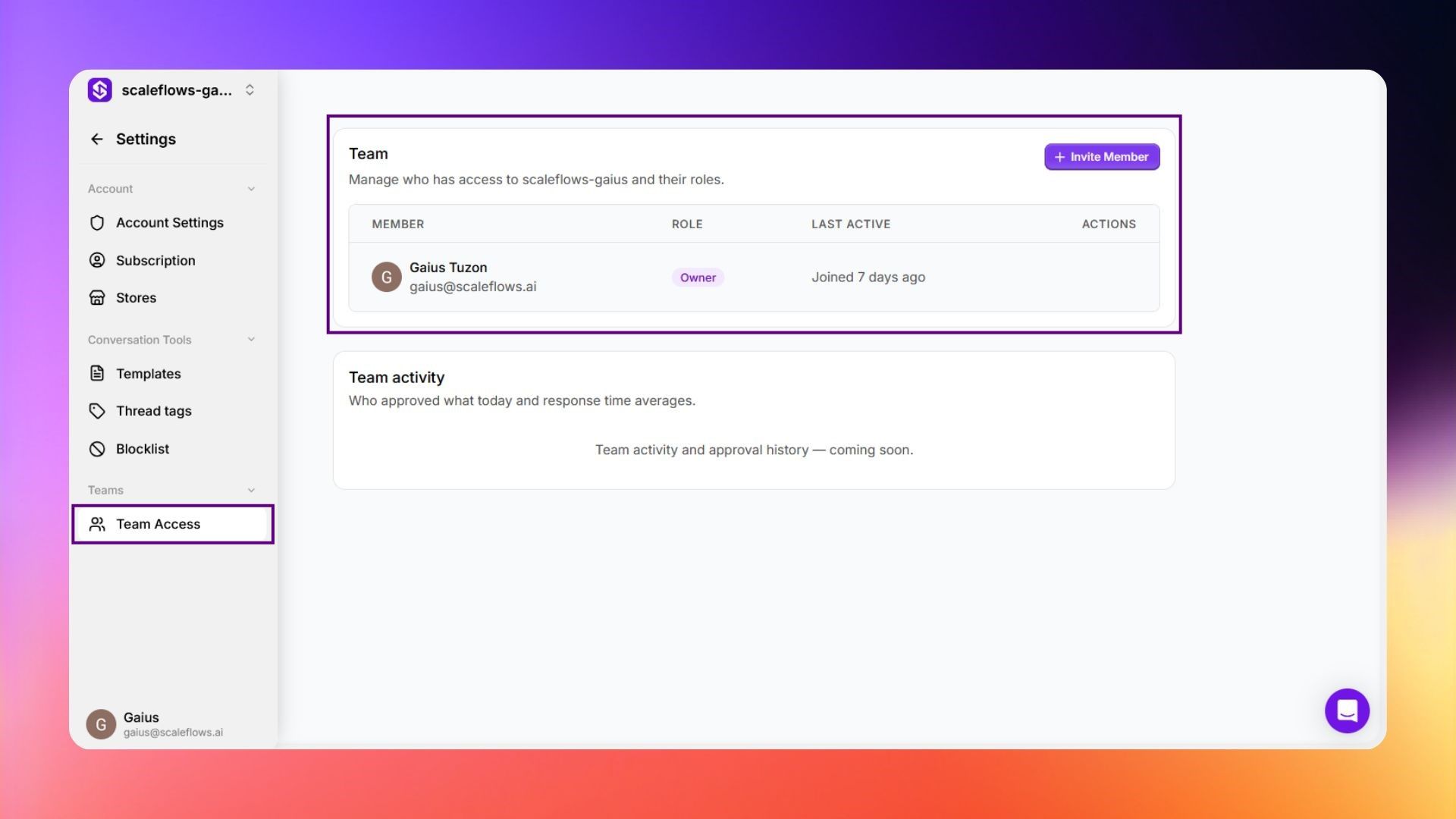
Step 2. Click Invite Member.
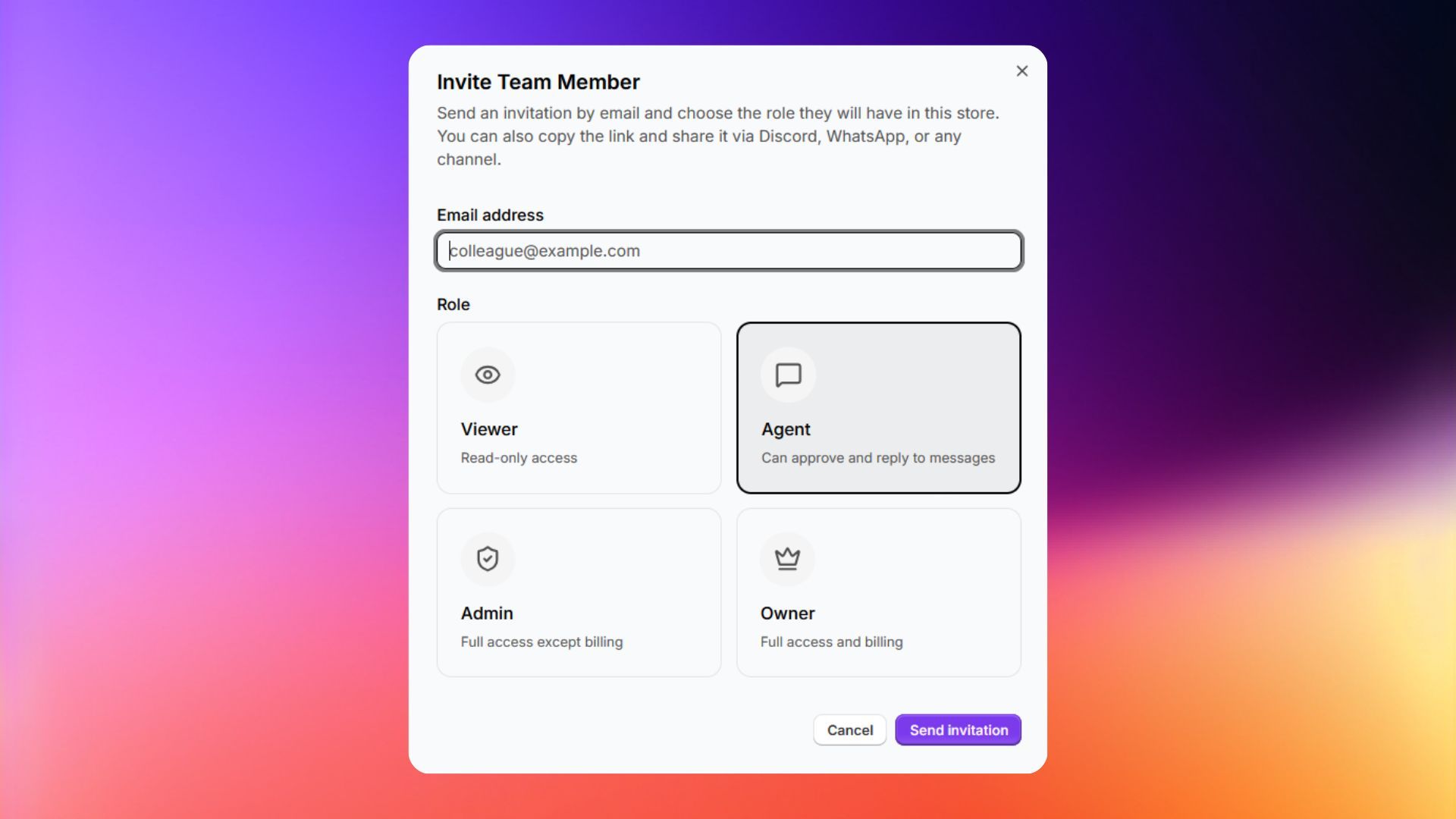
Step 3. Enter the person's email address.
Step 4. Choose their role (Viewer, Agent, Admin, or Owner).
💡 Tip: Assign Viewer roles to team members who only need to monitor conversations. Reserve Owner for the primary account holder or authorized staff who manage billing and full settings.
Step 5. Click Send Invitation. They'll receive an email with a link to join your store.
Manage Members