Manage a conversation
Assign, tag, resolve, block, download, and translate conversations directly from your inbox.
Written By ScaleFlows Team
Last updated 22 days ago
💡 Tip: Use the actions below to organize your inbox and resolve customer issues.
Step 1. Right-click any conversation in the inbox to access quick actions.
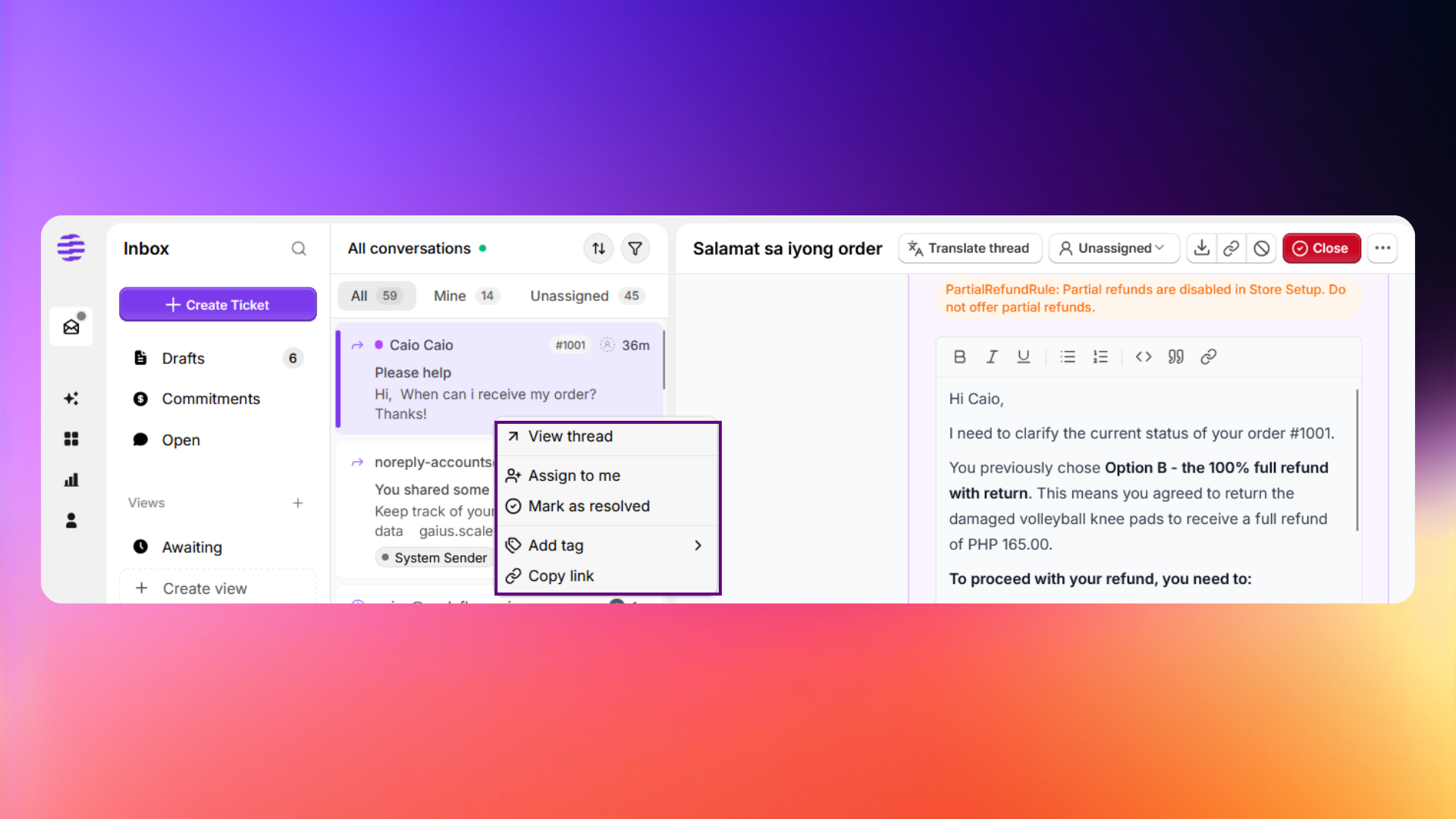
Step 2. Choose from the following actions:
💡 Tip: Copy and share a conversation link with a colleague or a member that has access to your workspace to collaborate on issues and on how to manage your tickets.
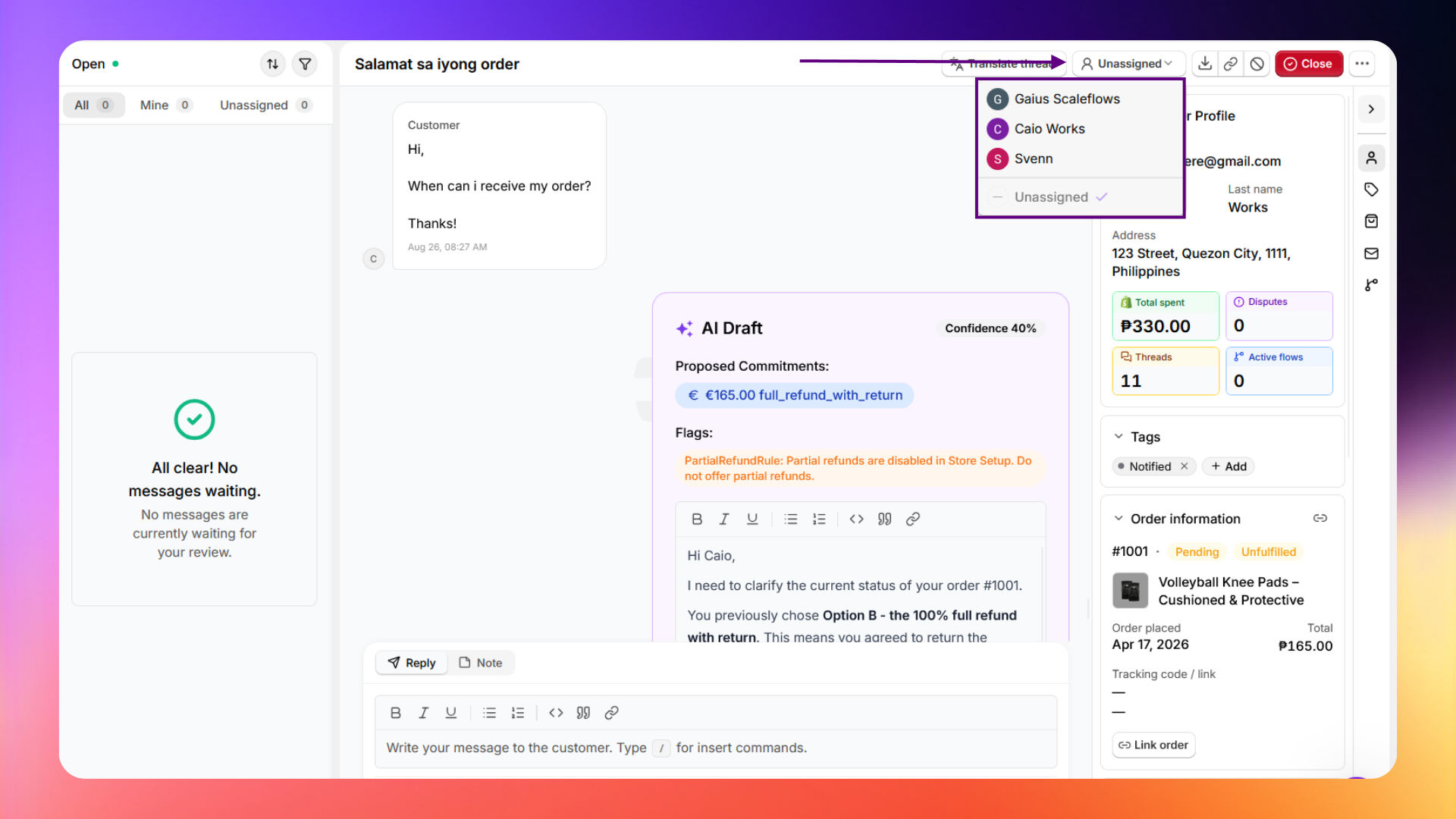
Step 3. Inside an open conversation, click "Unassigned" to select a team member and assign the ticket.
Click the three-dot button for additional controls.
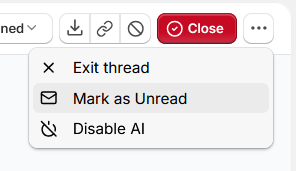
💡 Tip: Use Disable AI on conversations that need a personal touch. For example, high-value customers or complex complaints that fall outside your escalation or standard policies.
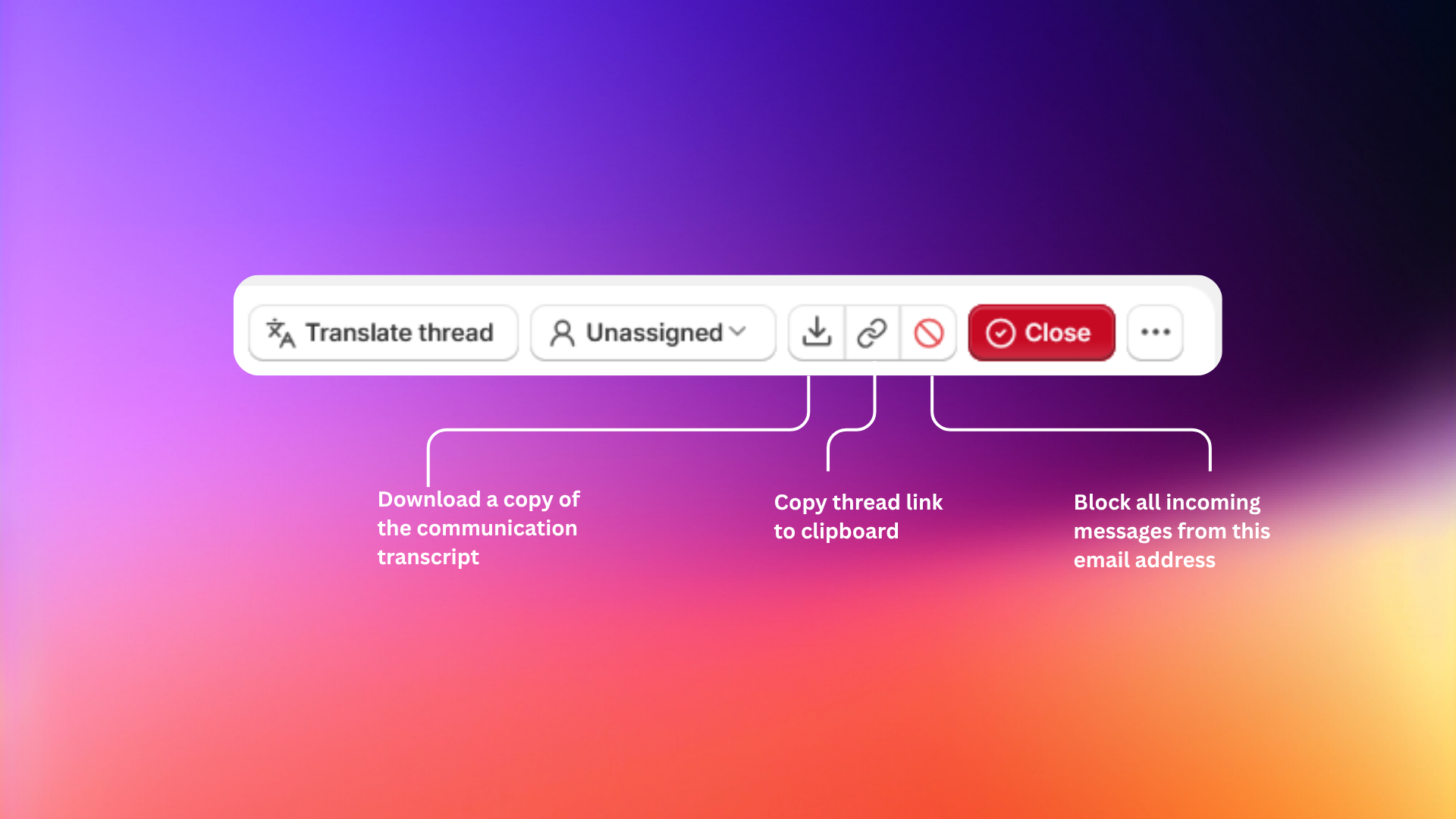
Step 4. Use Auto-translate, download, or block an email address using the following buttons in the thread view: